For websites using Elementor 4. This guide covers changes to existing content. If your editor looks like the screenshots in our classic Elementor guide, use that guide instead. Older widgets and new Elementor 4 elements can appear on the same page.
Your editing account may show fewer options than Elementor’s own examples. You do not need to install anything or change Elementor settings to follow this guide.
Open the page you want to edit
- Open the website login link in your Digitalon delivery report and sign in with your editing account.
- In the WordPress dashboard, select Pages.
- Find the page you want to change and select Edit with Elementor. If you are already viewing the page while signed in, you may also see this option in the bar at the top.
The page opens in Elementor. The page itself is the editing area. Select an item on the page to see its options in the side panel. The toolbar across the top contains the preview and saving controls.
Change headings and text
- Click the heading or paragraph you want to change.
- For an Elementor 4 heading or paragraph, click into the text on the page and type your changes. You can also change the text in the General tab in the side panel.
- To add simple formatting, select the relevant words and use the small toolbar that appears.
Keep the existing heading level, colours and fonts. When pasting from Word or an email, paste as plain text so you do not bring extra formatting into your website.
If the selected item has a Content tab instead of General, it is an older widget. Change its text there, or follow the classic Elementor guide.
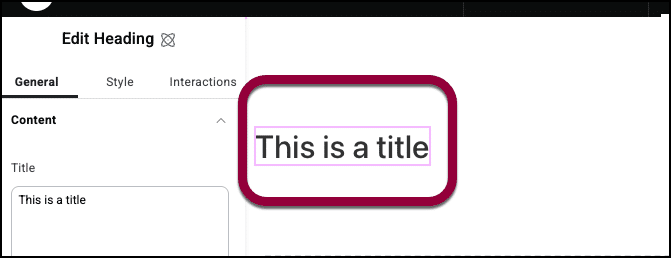
See Elementor’s illustrated text-editing instructions.
Replace an image
- Click the image on the page.
- In the General tab, move over the image field and choose Select Image.
- Choose a picture from the Media Library, or use Upload files to add a new one.
- For a picture that conveys information, add a short description in Alternative Text. A purely decorative image can have empty alternative text.
- Confirm your choice to insert the image, then check how it fits in the page.
Choose a replacement with a similar shape to the original. For example, use a landscape picture for an existing wide image. Upload a web-sized copy rather than a full-resolution camera file.
Some banners use a background image rather than an Image element. If selecting the picture does not show an image field, contact Digitalon before changing the layout or styling controls.
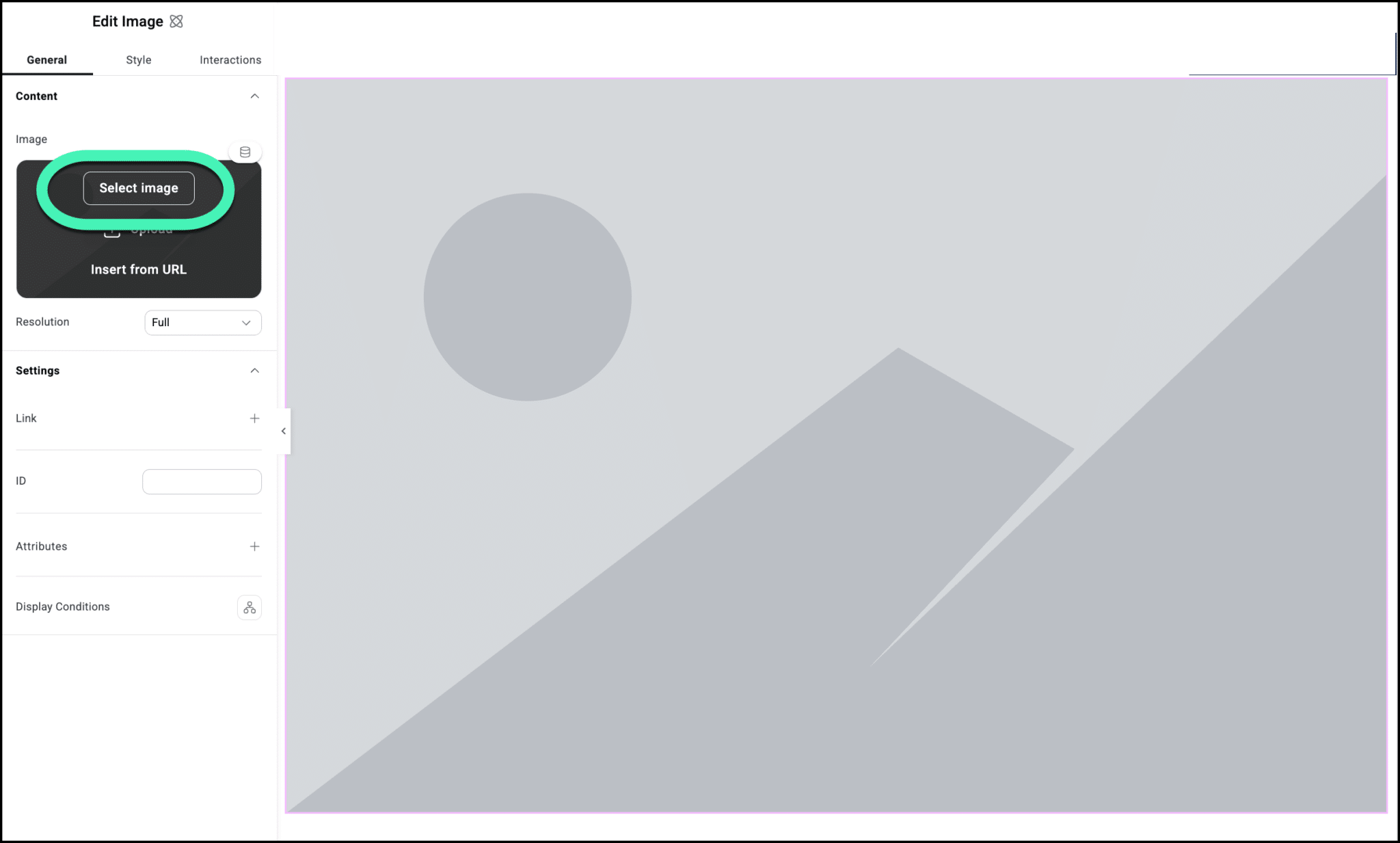
See Elementor’s illustrated image instructions for version 4.
Update a button or link
- Select the button on the page and open its General tab.
- Change the button text if needed.
- Open the Link control and enter the destination address. For a website, include https:// at the start.
- Keep the existing opening behaviour unless you specifically want to change it.
For a link within a paragraph, select the linked words and choose the link icon in the text toolbar. After saving, open the live page in another tab and check that the link goes to the right place.
Buttons can also open forms or perform another action. If a button has an action or a dynamic value instead of a normal web address, check with Digitalon before replacing it.
Preview and save your changes
- Use the desktop, tablet and mobile icons in the top toolbar to check your content at different screen sizes. Look for awkward line breaks, cropped pictures and buttons that are too wide.
- Use the preview control to check the page without the editing panel.
- When you are happy with the result, use the Publish or Update control at the top right. The label depends on the editing screen and the page’s current status. On an existing published page, saving applies your changes to the live website.
- Wait for the save to finish, then open the live page in another browser tab and refresh it.
Previewing a page does not save it. If your account offers a review or approval step instead of publishing, follow that step or ask Digitalon to finish the update.
Undo a change
To undo the last change while editing, press Ctrl + Z on Windows or Command + Z on a Mac.
The History control in the top toolbar also lets you step back through actions from the current editing session. Where revisions are available, its Revisions tab lets you choose an earlier saved version.
Restoring a revision can replace other changes made since that version. If you are unsure, stop editing and contact Digitalon. If History or Revisions is not available to your account, we can help check the recovery options.
Further help
These official Elementor instructions include screenshots and more detail:
- Editing text directly on the page
- Working with the Elementor 4 Image element
- Working with the Elementor 4 Button element
- Undo, redo and revision history
For changes to page structure, shared styles, menus, headers, footers or forms, contact Digitalon. We can help you make the change without affecting other parts of your website.